
Turning on the drafting and collaboration tool for repository users in ContractWorks will allow them to automatically upload drafted and approved documents to the repository.
Instructions
Step 1: Open Settings.
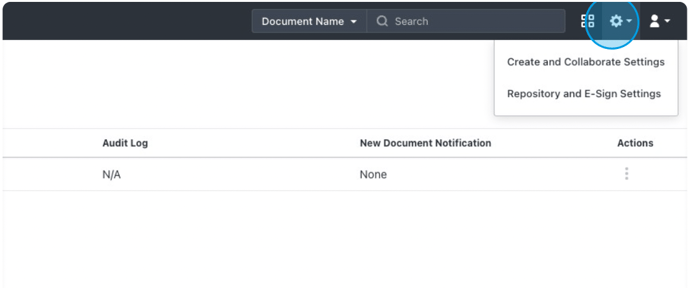
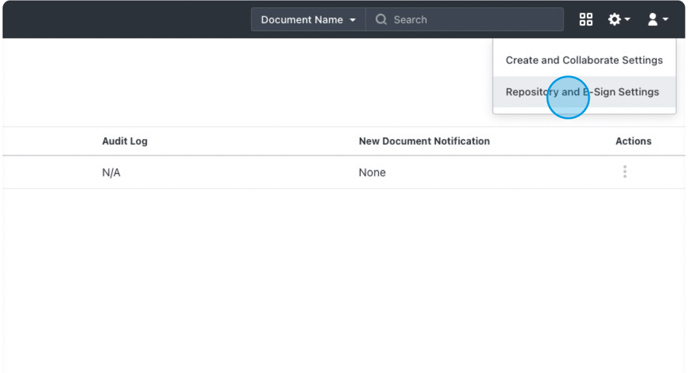
Step 2: Click "Repository and E-Sign Settings"
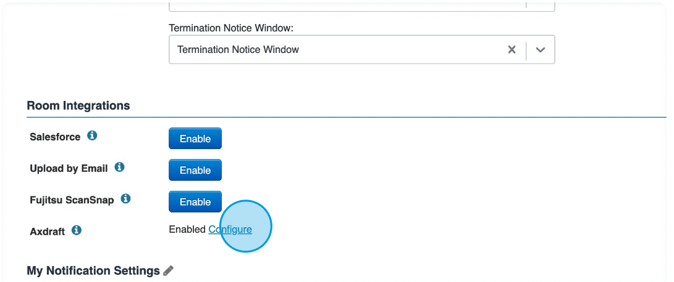
Step 3: Scroll down to "Room Integrations" section and click "Configure"
Step 4: Scroll down to "User Settings".
Note: This is the section where integration with the drafting tool for Repository users is added.
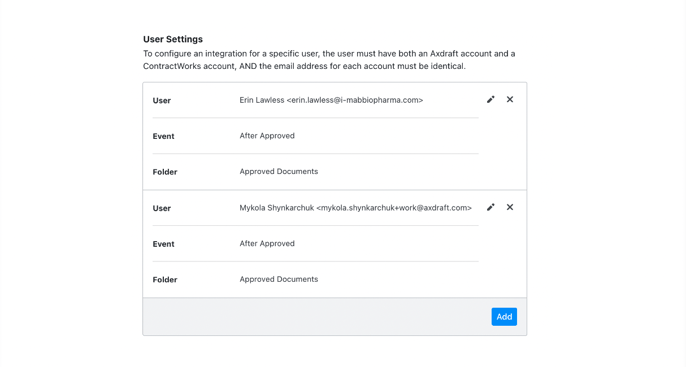
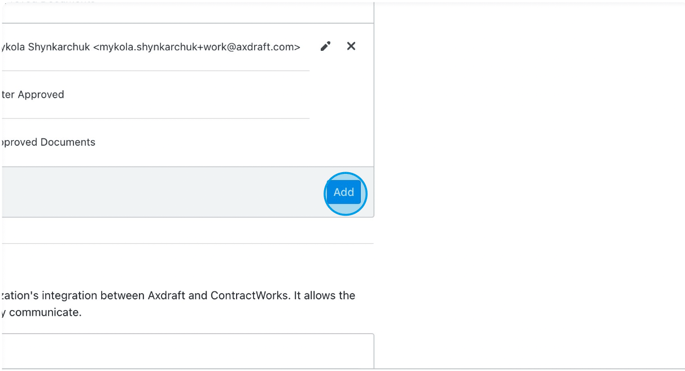
Step 5: Click "Add"
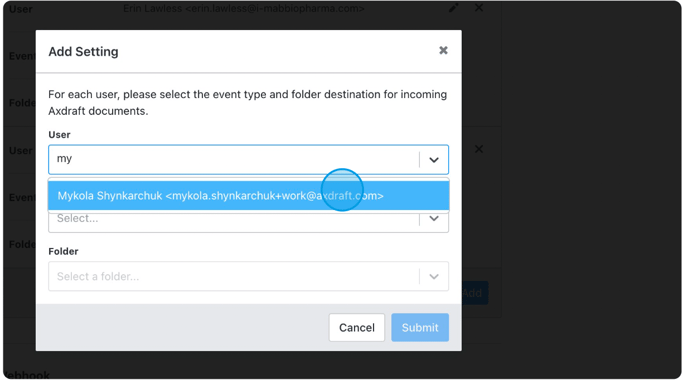
Step 6: Select the user's name from the drop down user list.
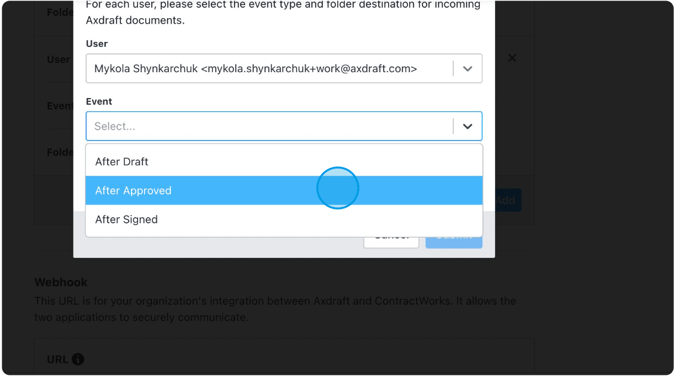
Step 7: Select "After Approved" for event type.
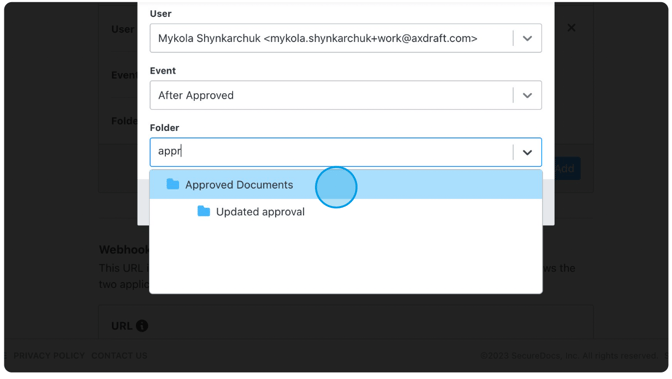
Step 8: Choose the "Approved Documents" folder.
Step 9: Click "Submit". Now, all approved documents created or uploaded by this user will be automatically stored in the "Approved Documents" folder.
Note: Please repeat these steps for every user who will use the drafting tool for creating/uploading documents.